- Docs
- Tutorials
Give Each Team Its Own Board
Route a team's designs and decisions to its own board by the applications it owns, using the owner tags on its resources, and keep the Design Authority for what crosses teams.
Note
Routing by application needs Archigov 0.3 or later. On 0.2.x, use a delivery board and referral instead.
#What You'll Build
A Clinical Systems Board that decides the designs and decisions for the applications the clinical systems team owns. It needs one approval and offers the fast lane. Reviews for every other application go where they went before. A decision that spans teams goes to the Design Authority.
#1. See What the Team Owns
Ownership comes from the estate. An application's owners are the owner tags on its resources. Open Model → Applications and read the Owner column: in the demo, Appointments and PatientFlow show clinical-systems.
If your resources aren't tagged yet, add an owner tag in Azure, and the next collection picks it up. Alternatively, list the applications by name in step 3.
#2. Create the Board and Seat the Team
As the platform admin, choose Governance → Boards → New Board:
- Code:
CLIN - Name: Clinical Systems Board
- Purpose: The clinical systems team's board: designs and decisions for the applications it owns.
Under Manage Members, seat the team's lead as chair and an engineer as decision maker. In the demo, that's Ada Okafor and Tom Nguyen. Leave the board without areas, so it counts approvals.
#3. Route the Team's Applications
Under Decision Flow → Routing, choose Edit Routing and add two rules. For a design, decision or exception rule, a second line offers Applications and Owner tag:
| Review type | Owner tag |
|---|---|
| Design | clinical-systems |
| Decision | clinical-systems |
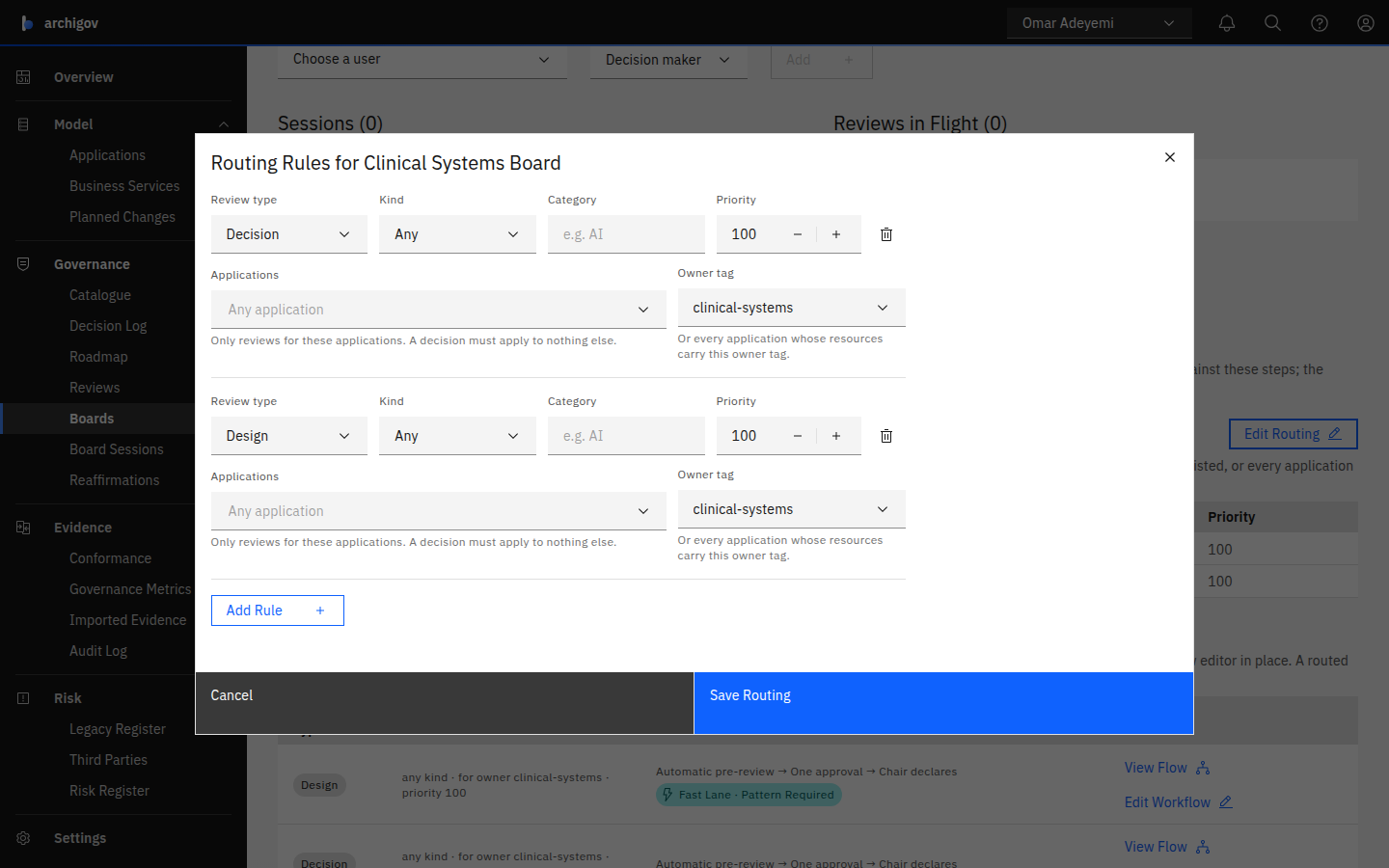
Choose Save Routing. The routing table now shows the condition.
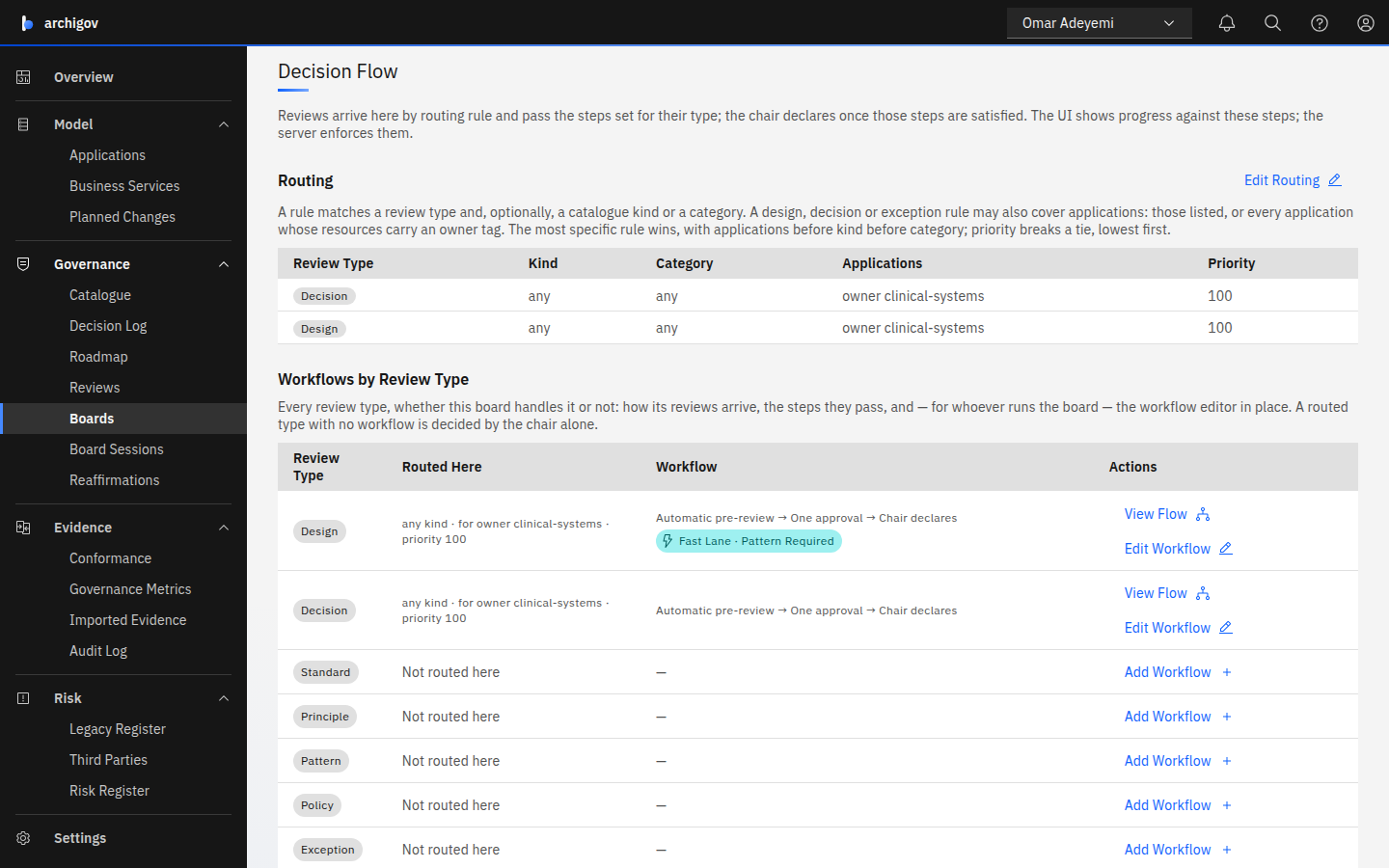
A rule that names applications is the most specific there is. The team's board therefore receives its own designs even though the Engineering Board takes every other design. It also receives its own data-store decisions, even though the Data & AI Board takes that topic everywhere else.
#4. Make It Light
On the Design row of Workflows by Review Type, choose Add Workflow:
- keep the approvals step as it starts: Mode Count, Minimum 1;
- under Fast Lane, turn on Offer a Fast Lane;
- choose Save Policy.
Do the same on the Decision row. Decisions have no fast lane.
#5. Check Where Reviews Go
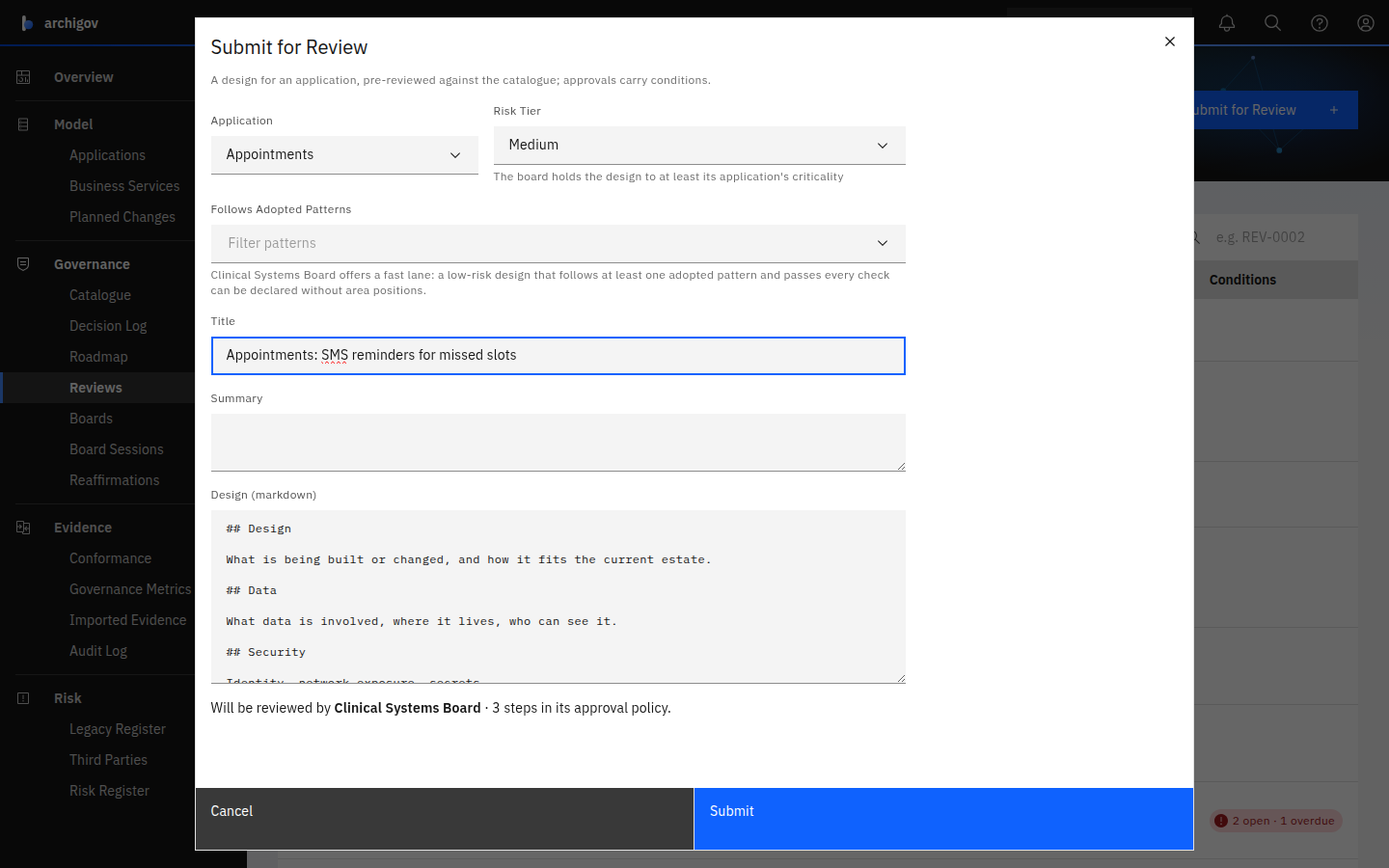
Choose Reviews → Submit for Review, then Application: Appointments. The form says Will be reviewed by Clinical Systems Board before you submit.
#Good to Know
- Every application must be covered. A decision that applies to Appointments and Finance ERP isn't covered by the team's rule, so it goes to whatever board the general rules choose, usually the Design Authority.
- No application, no team rule. A decision that applies to no particular application never matches a rule that names applications.
- Exceptions are opt-in. A team board can also take exception reviews for its applications with an Exception rule. Leave them with the Policy & Compliance Board if exceptions to mandatory policies should stay central.
- Escalation is the chair's call. The team's chair refers a review to the Design Authority with a reason. Automatic escalation, for example "refer when a critical application is touched", is on the roadmap.
- Reaffirmation follows the board. Decisions the team's board accepted are reaffirmed by its chair.
- Who configures routing: the board's chair or secretary, or the platform admin. Only the platform admin creates boards.
See Routing for the precise rules.
Something unclear or out of date? Write to hello@archigov.com or open an issue on GitHub.