- Docs
- Overview
Your First Decision
Take one architecture decision through its whole lifecycle on the demo tenant — draft, argue, submit, decide by area, and watch the estate held to it.
This tutorial uses the demo tenant from the Quickstart. You will act as four people in turn, using the View As menu in the header. Allow about fifteen minutes.
The scenario: the demo's core standards include STD-006 — Data stores are an architecture decision (an application that runs Azure SQL needs an accepted decision on the data-store topic) and STD-006b — Deployed data stores match the accepted decision. Some demo applications have no such decision yet, so STD-006 reports a finding against them. You will close that gap properly.
#1. Find the Gap (Any User)
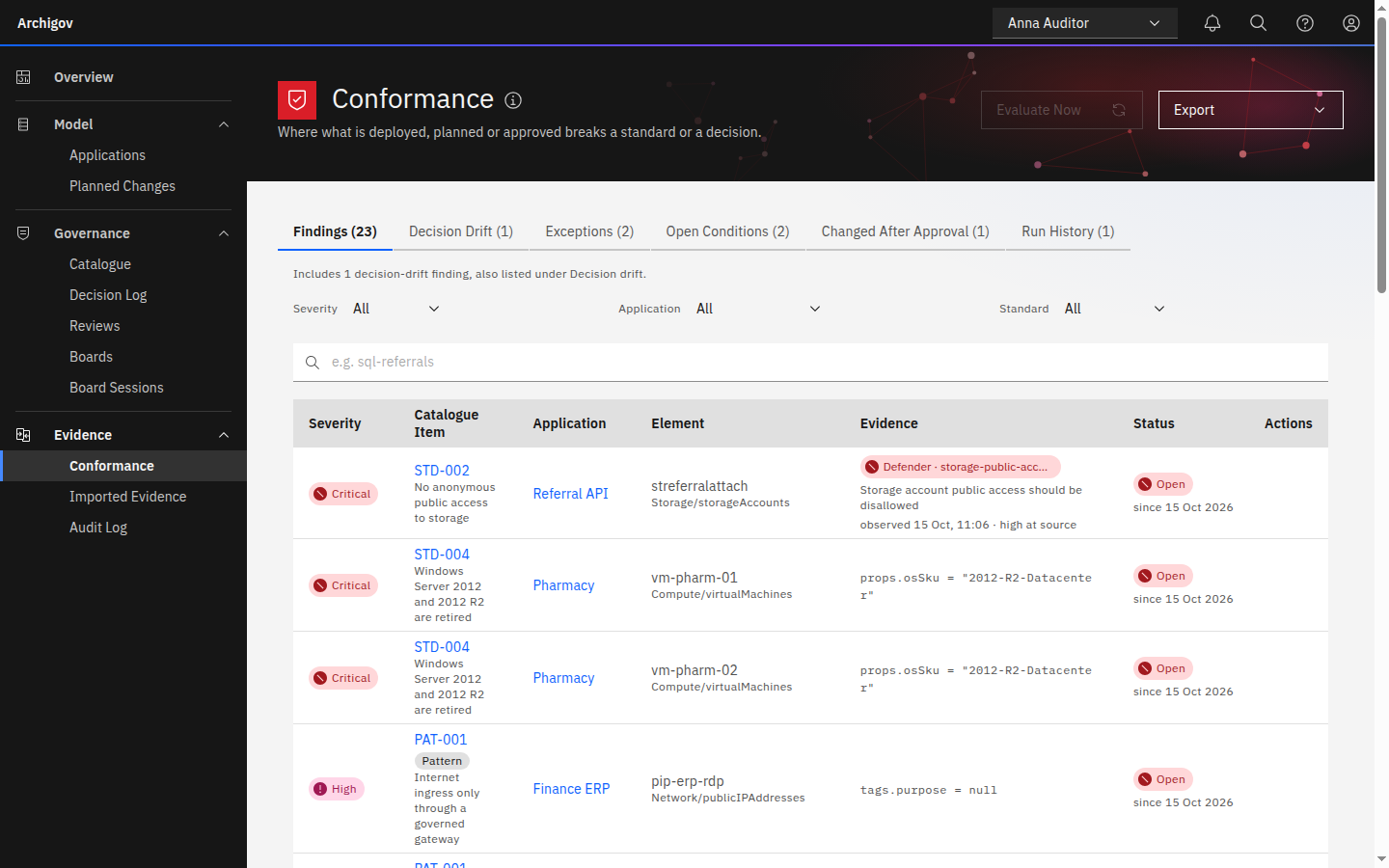
Open Evidence → Conformance and filter by the standard STD-006. Each finding names the application, cites the standard, and records when it was first and last seen. Pick one application; this tutorial calls it the application.
#2. Draft the Decision (Sanjay Patel, Author)
Switch to Sanjay Patel. Open Governance → Decision Log and choose New Decision.
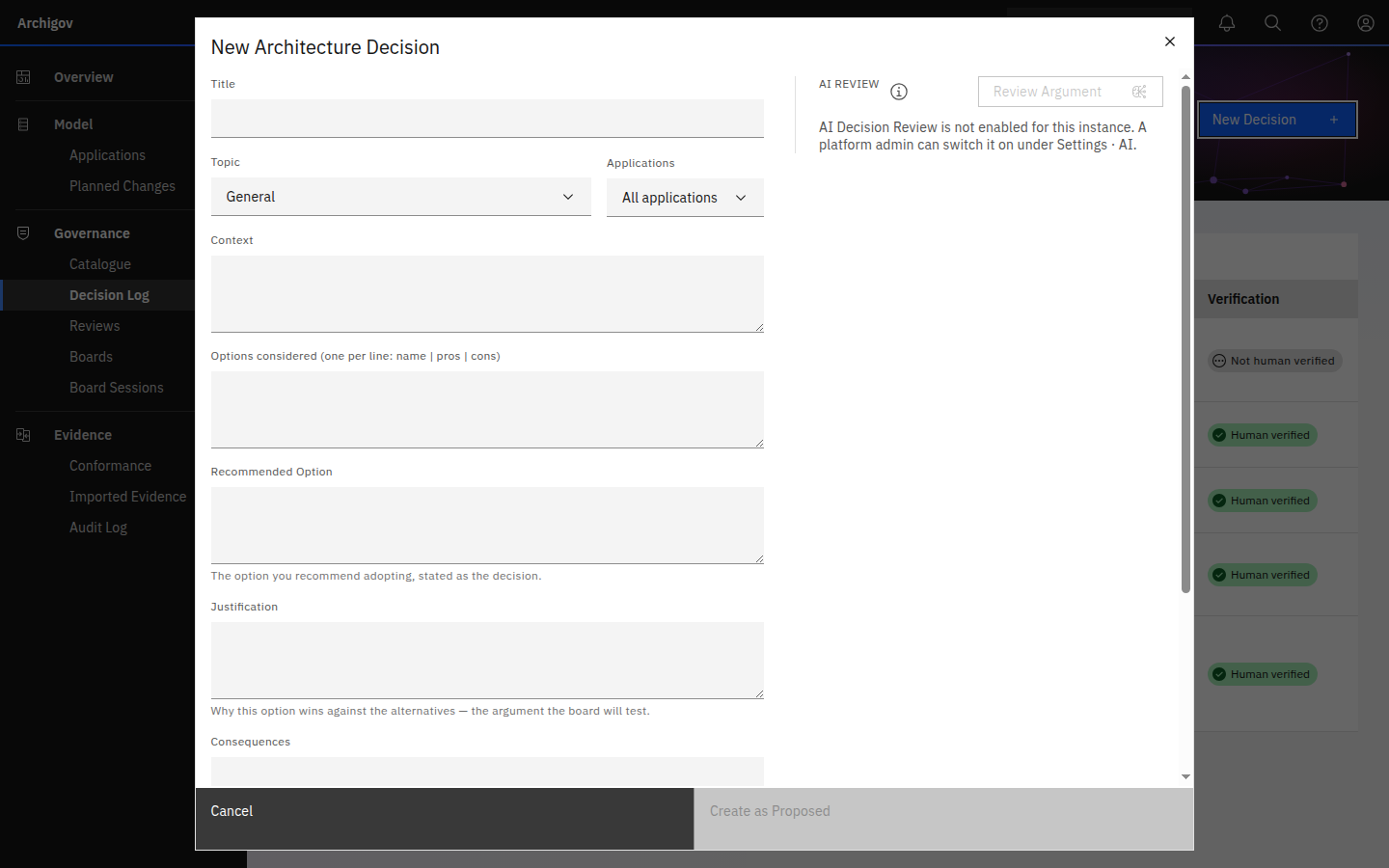
- Title — for example Azure SQL Database is the relational store for claims.
- Topic — choose Data store (
data-store). The topic is how rules find the decision: STD-006 asks for an accepted decision on this topic. - Context — the forces at play: data volumes, recovery objectives, team skills.
- Options considered — one per line,
name | pros | cons. Include real alternatives; a review flags strawman options. - Recommended Option — what you propose.
- Justification — the argument the board will test: why this option, against the alternatives, given the context.
- Consequences — what accepting it means, including the risks you explicitly accept.
- Checkable constraint —
Microsoft.Sql/servers. Once the decision is accepted, any other database service deployed for the application becomes a finding under STD-006b. - Applications — select the application. Link the catalogue artefacts the decision rests on.
If a platform admin has enabled the Decision Review AI feature, choose Review Argument in the right-hand panel. It returns unsupported claims, missing alternatives and unstated risks, a tightened version you can apply, and suggestions for assessments that would evidence critical claims. It is advisory and stores nothing. With AI disabled the button explains why it is unavailable; everything else works the same.
Choose Create as Proposed. The decision is now proposed, with origin: human and verification: unverified.
#3. Submit It for Review
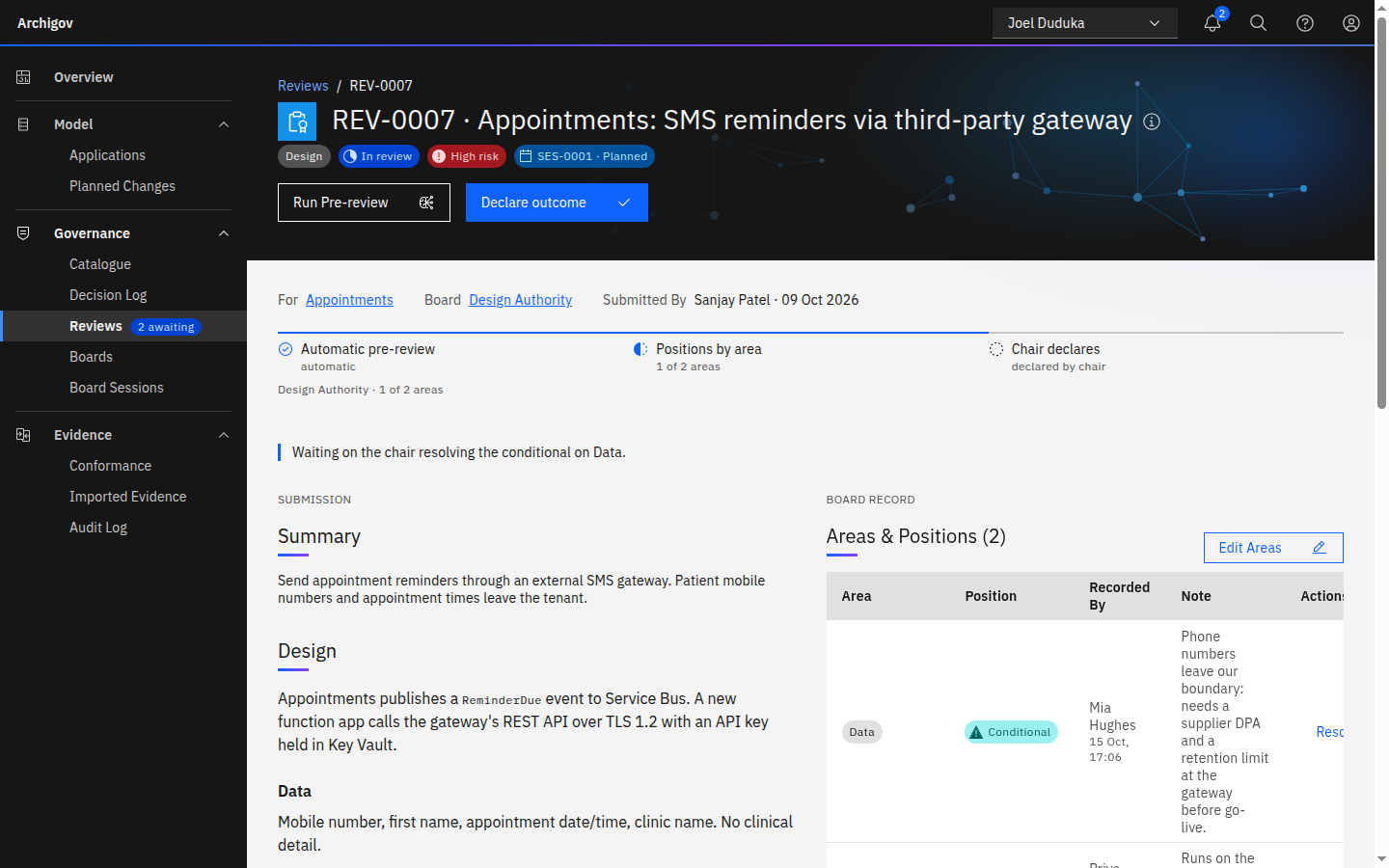
On the decision's page choose Submit for Review. Archigov:
- Creates a decision review (
REV-xxxx) and routes it by type to the Design Authority. - Runs the automatic pre-review: deterministic checks against the adopted catalogue, plus a cited AI pre-review if that feature is enabled. Citations that do not resolve to a real artefact, decision, resource or section are discarded.
- Derives the touched areas from the topic and the linked artefacts' categories —
data-storemaps to Data, and a linked Governance standard such as STD-006 adds Privacy & compliance. You can correct the areas; a human edit is shown as such and sticks.
Open the review. The waiting-on line names exactly who holds it up: each touched area that still needs a position, and the decision maker who owns it — here Mia Hughes, who owns both Data and Privacy & compliance.
Note
Trying to accept the decision directly from the Decision Log now returns 409 under review: acceptance goes through the review, so there is only one door.
#4. Record a Position (Mia Hughes, Decision Maker)
Switch to Mia Hughes. The bell shows the position waiting on her. On the review, in the Board Record column, choose Record Position on the Data row and pick one of:
- Yes — the area is satisfied.
- No — sends the item back for changes (a comment is required).
- Conditional — yes, subject to a condition (explain it). The item stays open until the chair resolves the condition.
- Not my area — the area was derived wrongly; give the reason and it drops out.
Record Conditional on Data with the text Needs a documented geo-restore test before go-live, and Yes on any other area she owns. The item cannot be approved while a conditional is open.
#5. Resolve and Declare (Joel Duduka, Chair)
Switch to Joel Duduka. The chair has no vote: he moderates and declares the outcome the positions allow.
- On the Data row choose Resolve, pick Accept as tracked condition, set the owner (the submitter by default) and a due date, and explain the resolution. Explanations are mandatory and land on the timeline and in the minutes.
- Choose Declare, then Approved with conditions, and give a rationale.
The decision becomes accepted. The condition appears in Sanjay's work queue and turns overdue if it passes its due date.
#6. Watch the Estate Held to It
Open Evidence → Conformance again (the engine re-evaluates on every sync and hourly; a user with the pre-review right can re-run it). The STD-006 finding for the application is now resolved, and the run records it in its list of changes. If someone later deploys, say, a Cosmos DB account for the application, STD-006b opens a finding that cites your decision by code.
#7. See the Record (Anna Auditor)
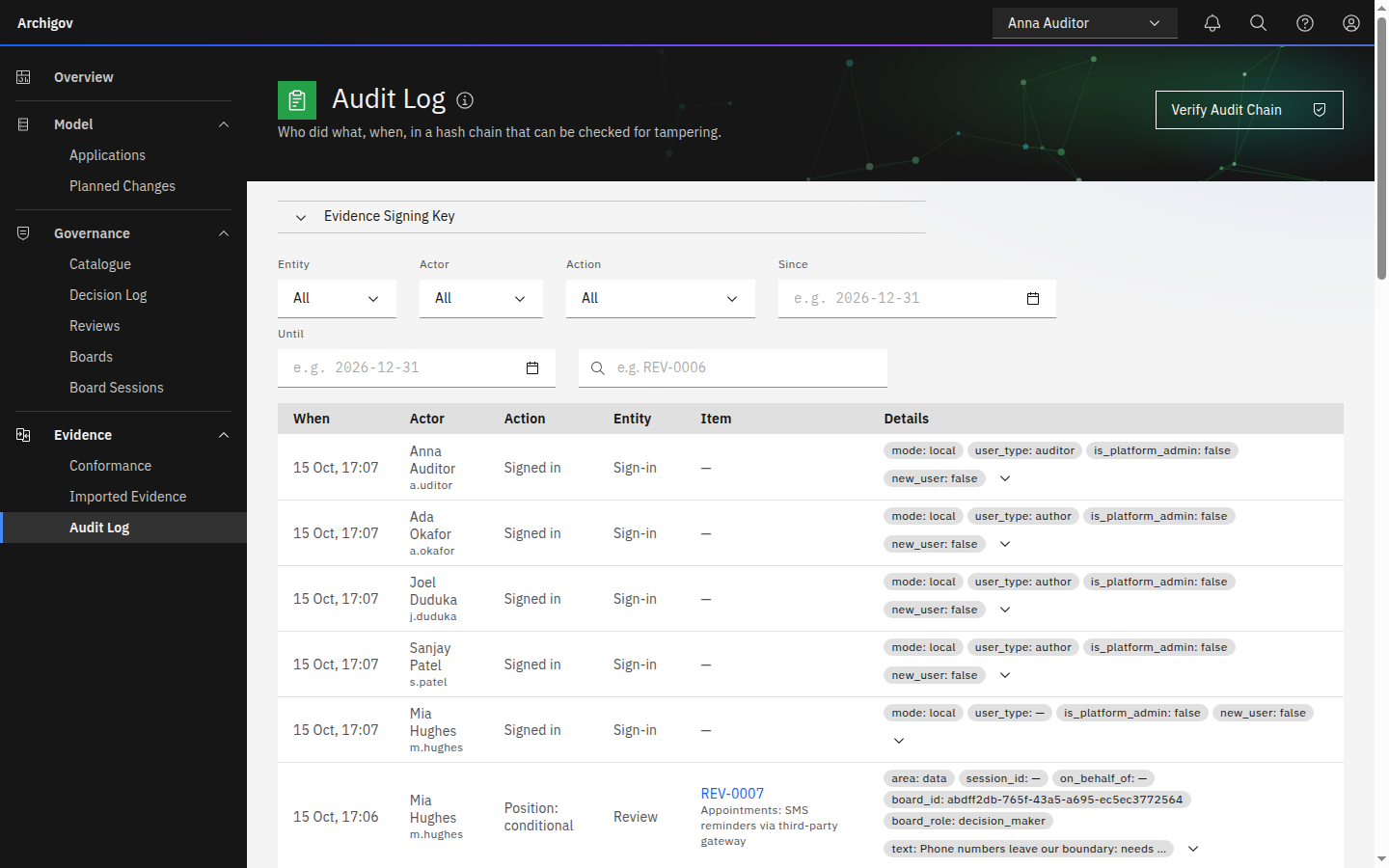
Switch to Anna Auditor. In Audit Log, filter by the review's code: every act — submission, pre-review, position, resolution, declaration — is a row with an actor, a role and a hash chained to the previous row. Export the evidence pack and verify it with the endpoint described in Exports.
#What You Have Seen
- One decision moved through draft → argued → routed → positioned by area → resolved → declared → enforced.
- Nobody approved anything on anyone else's behalf, and the platform admin played no part.
- The outcome is checkable: the decision's constraint is a rule the estate is evaluated against.
Continue with How it fits together, or run a full sitting with Board sessions.
Something unclear or out of date? Write to hello@archigov.com or open an issue on GitHub.