- Docs
- Guides
Configure Boards
Seat your boards, define areas of responsibility, route review types, and choose an approval policy per type — count mode or areas mode.
#Who Configures What
| Configuration | Who |
|---|---|
| Create a board | Platform admin |
| Name and purpose | Platform admin or the board's chair or secretary |
| Members and seats, routing | The board's chair or secretary, or the platform admin |
| Approval policies, areas | The board's chair, or the platform admin |
| Sessions | The board's chair or secretary — never the platform admin |
Every change is audited. Open a board from Governance → Boards; a callout on a new board names what it still lacks.
#1. Seat the Members
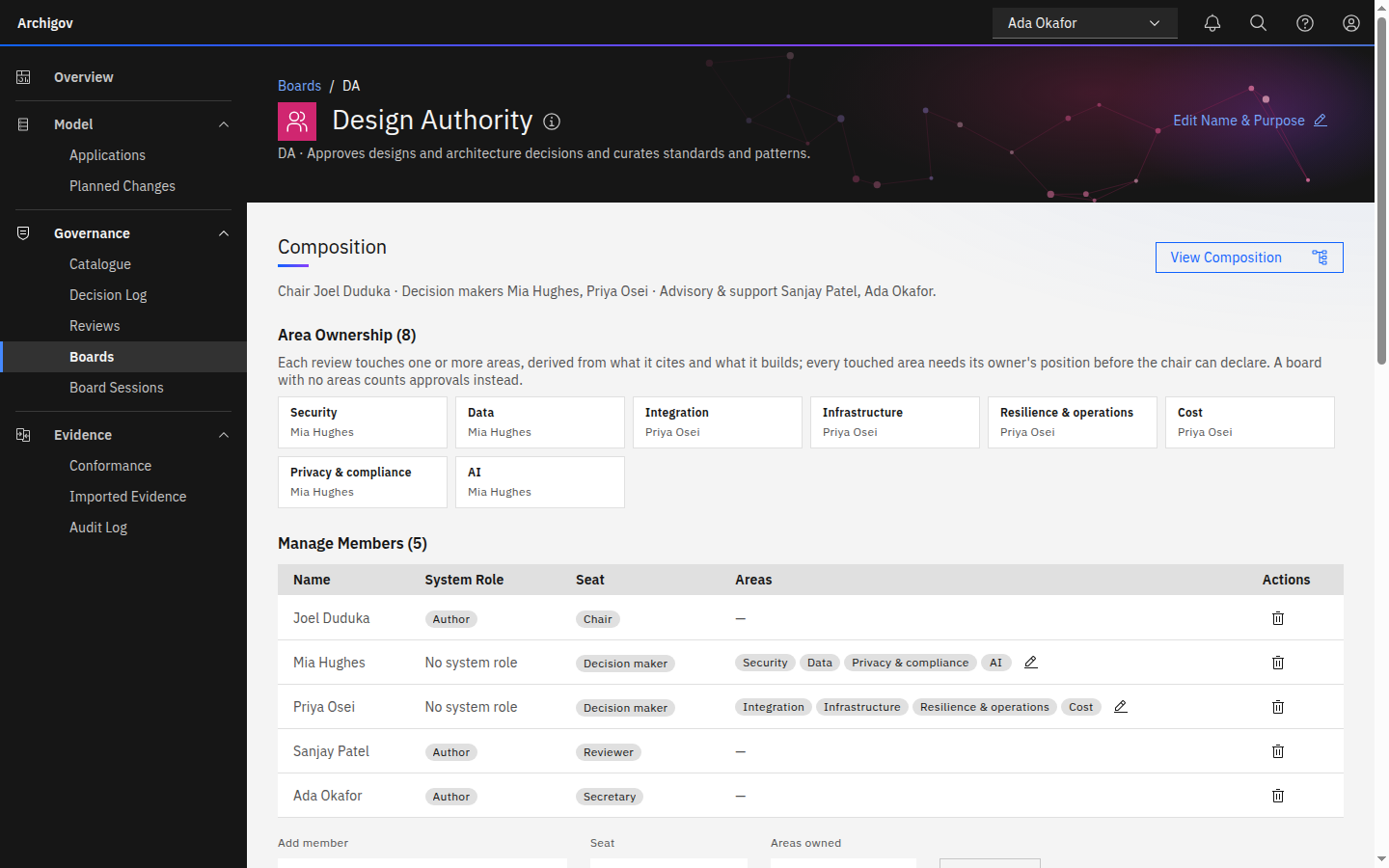
On the board, add members and give each a seat: chair, decision maker, reviewer, secretary or observer. A person can hold seats on several boards, and seats are independent of their system role — a decision maker with no system role can still record positions.
Keep segregation of duties in mind: the platform admin should hold no seat, and an author who chairs a board will need an acting chair for their own items.
#2. Define Areas (Areas Mode)
Areas of responsibility let a board require a position per concern rather than a head count. Choose Edit Areas and select from the eight seeded areas — Security, Data, Integration, Infrastructure, Resilience & operations, Cost, Privacy & compliance, AI — or add your own (an id and a label).
Then give each decision maker the areas they own. The board shows coverage and warns about any area no decision maker owns, because a review touching it could never be approved.
Warning
Removing an area from a member, or removing a member, changes who can satisfy that area on every open review. The confirmation names the consequence; read it.
#3. Route Review Types
Under Decision Flow, the workflow table lists every review type. A routing rule sends a review type — optionally narrowed to an artefact kind or a category — to this board. When several rules match, the most specific wins; with no match, reviews go to the Design Authority.
Typical splits:
- Design Authority:
design,decision,standard,pattern. - Policy & Compliance Board:
policy,principle,exception. - A Data board:
standardreviews in the Data category.
#4. Choose a Policy per Type
Each review type gets a sequence of steps. Edit Workflow on a row:
{ "steps": [
  { "name": "Automatic pre-review", "kind": "pre_review" },
  { "name": "Positions by area", "kind": "approvals", "mode": "areas", "roles": ["decision_maker"] },
  { "name": "Chair declares", "kind": "decision", "roles": ["chair"] }
] }- Count mode —
"mode": "count", "min": 2, "roles": ["chair", "decision_maker"]: two distinctyespositions from those seats. - Areas mode — one
yes(or a resolved conditional) per touched area from its owner or their delegate.minis ignored;rolesdefaults to decision makers.
A type with no policy of its own uses the default: pre-review, one approval from a decision maker or the chair, then the chair's decision.
#5. Plan the First Session
The secretary or chair creates a session under Sessions on the board. See Board sessions.
#Upgrading a Board from Count to Areas Mode
In-flight reviews keep their count-mode approvals as positions without an area. Those do not count toward any area; owners re-record per area. Plan the switch between sittings.
Something unclear or out of date? Write to hello@archigov.com or open an issue on GitHub.